Our users have verified that this product integrates well with our BMS
¶ SMA Sunny Island Integration
¶ Wiring
¶ Inverter-Side
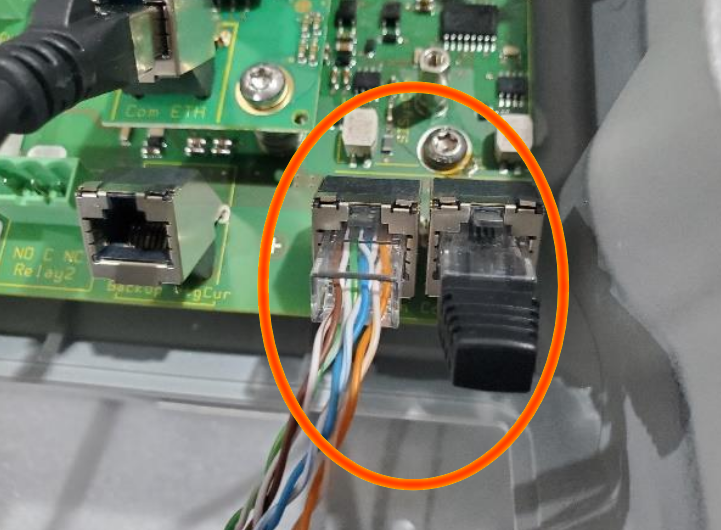
- Connect a CAT5e cable to the ComSyncIn port inside the inverter:
¶ BMS-Side
- Strip the battery end of the CAT5e cable
- Confirm you are using T568B wiring, as shown below (or carefully adjust for T568A):
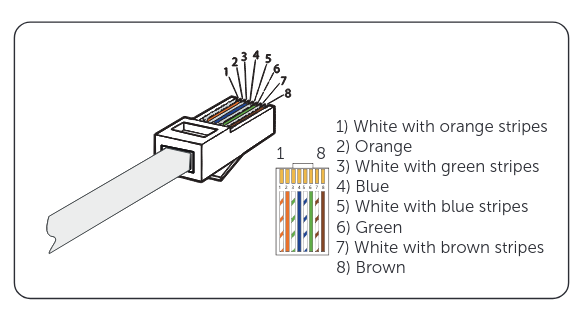
- Connect the wires to the WatchMonCORE CAN terminal as follows:
| Pin | Inverter Function | Colour | WatchMon Function | Pin |
|---|---|---|---|---|
| 1 | Sync1 - reserved | White with orange stripes | ||
| 2 | CAN_GND | Orange | CAN G | 3 (Only connect if you have exhausted other options and you are getting sporadic communication errors) |
| 3 | SYNC_H | White with green stripes | ||
| 4 | CAN_H | Blue | CAN H | 1 |
| 5 | CAN_L | White with blue stripes | CAN L | 2 |
| 6 | SYNC_L | Green | ||
| 7 | Sync7 - reserved | White with brown stripes | ||
| 8 | Sync8 - Reserved | Brown |
¶ WatchMonCORE
You will need to connect the CAN H (Blue) and CAN L (White with blue stripes) above to the pins on the WatchMonCORE as shown below:
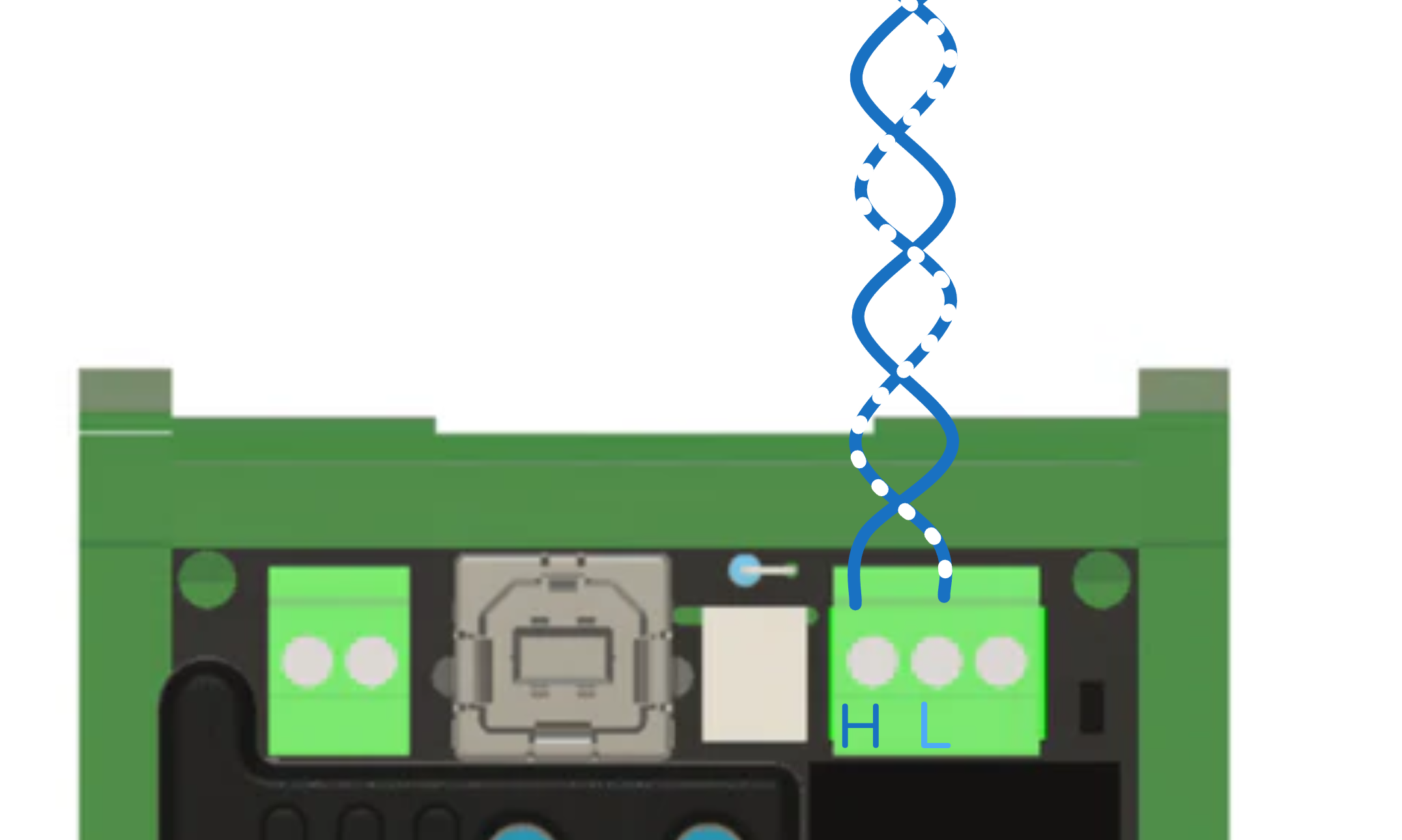
Keep the pair twisted in its natural direction to preserve communication integrity
¶ Others
See: CAN wiring for older WatchMons
¶ Software
-
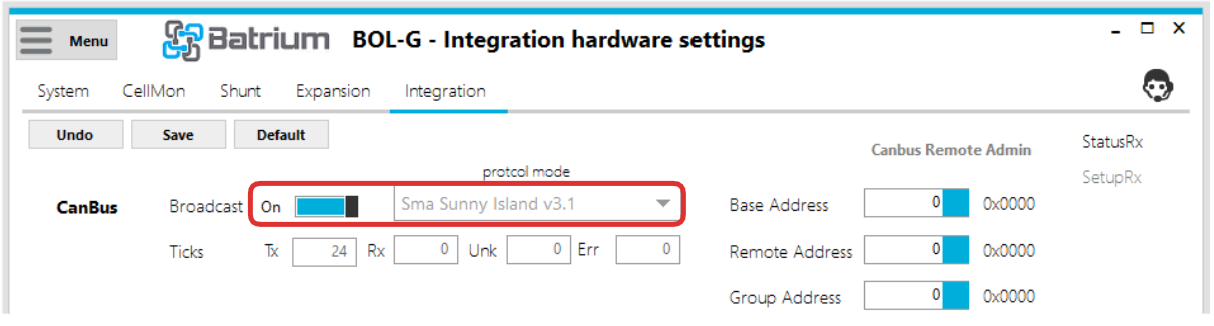
From the Hardware > Integration tab, select Sma Sunny Island v3.1:
-
Click Save
-
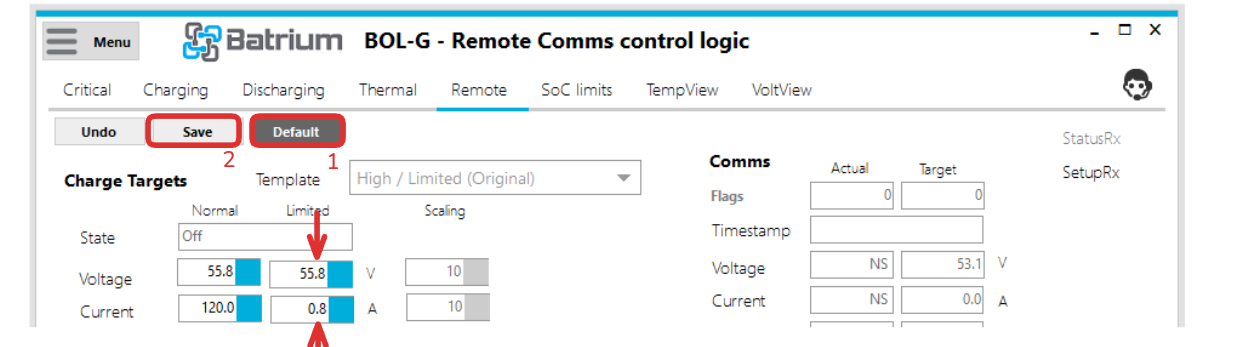
Move to the Control > Remote tab, click Edit, then Default, then Save in order to set the scaling settings correctly for the profile you have just selected.
-
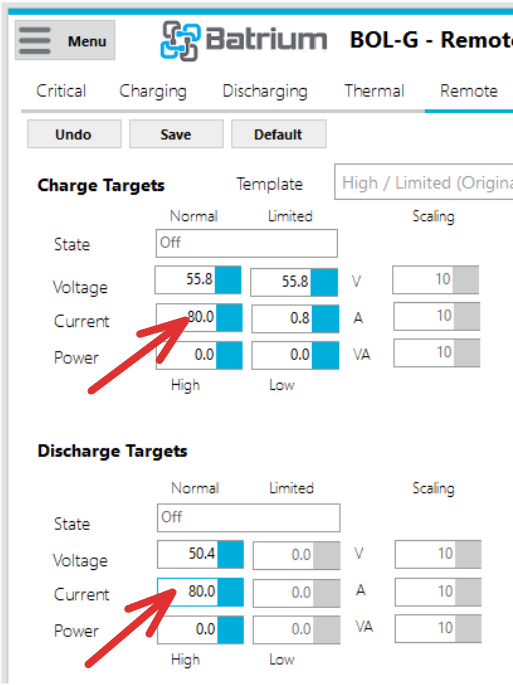
Set the charge and discharge current limits based on the limits recommended in your cell datasheet, multiplied by cells/strings in parallel OR the size of your inverter (power / nominal voltage), whichever is lower:
¶ Inverter Configuration
As more customers use this integration, we may add steps required here. In many cases, no steps outside what is mentioned in your device manual will be required here
¶ Done!
You can now double check that the below info is being recieved by the inveter:
¶ Protocol Info
¶ Info Sent from Inverter to BMS
¶ Heartbeat (Once per second)
- Inverter Measured Voltage (1 decimal place)
- Inverter Measured Current (1 decimal place)
- Inverter Measured Temperature
- Inverter Measured SoC%
¶ Info sent from BMS to Inverter (as specified by Inverter protocol)
¶ Control Target Limits (Once per second)
- Max Charge Voltage (1 decimal place) - RV9 (could also be between RV9 and RV7 if dynamic targets are used)
- Max Charging Amps (1 decimal place)
- Max Discharging Amps (1 decimal place)
- Min Discharge Voltage (1 decimal place) - RV3
¶ BMS Status (Once per second)
- State of Charge SoC% (0 decimal places) 1% to 99% SoC, will only send 100% when Charge/Bypass Complete
- Shunt Voltage (2 decimal places)
- Shunt Amps (1 decimal place)
- Battery Temperature (0 decimal places) - Average of cell temperatures
¶ BMS Info
- Capacity in Ah
¶ Alert Notifications
- When Critical state triggered
¶ BMS Identifiers
- Manufacturer = "Batrium"
- Hardware Version
- Firmware Version